Exported and scanned decks
Bring back slides from a PDF export, a scanned handout, or a PDF from NotebookLM and other AI slide tools.
A PDF of a slide deck is a stack of pages, not slides you can edit. PowerPoint can't open a PDF as a presentation, and when the pages are scans or images there is no text to copy out. Image2PPT converts slide PDFs into a PPTX with editable text, shapes, and tables: decks exported to PDF, scanned presentations, and image-only PDFs from NotebookLM or other AI slide tools.
It's built for PDFs where every page is a slide. For contracts, forms, and long text reports, opening the PDF in Word is the better route.
Bring back slides from a PDF export, a scanned handout, or a PDF from NotebookLM and other AI slide tools.
Convert only the pages you need instead of paying for a whole PDF deck.
Recover real text boxes, layout shapes, tables, and structured business-slide regions.
1-5 or 2, 4, 7-9. One job takes up to 50 pages or images, so for a longer PDF pick the slides you need or convert it in parts.Image2PPT rebuilds the parts of a slide you are most likely to change:
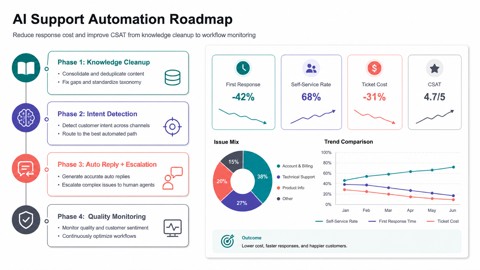
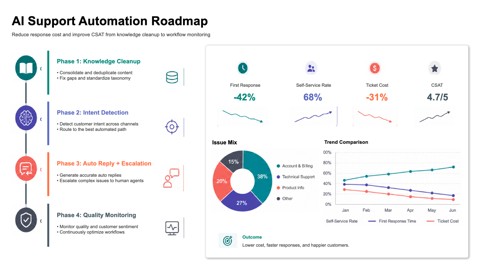
Photos, illustrations, logos, and detailed icons stay as sharp images in their original positions, so the slide still looks like the page it came from. Charts depend on the design: simple bar and line charts are often rebuilt from shapes, while dense or decorative charts stay as images. You can move, resize, or replace them like any other picture.
The same reconstruction used for screenshots is applied to each PDF page. Clear, slide-like pages produce the most editable output.
Sign up to try 3 slides free. No credit card required. The free credits are valid for 7 days. After that you pay per page with credit packs, not a subscription: each PDF page you select uses one credit, and purchased credits stay on your account until you use them. Packs start at $5.99 for 30 credits. See full pricing.
Yes. Image2PPT turns each PDF page into a slide and rebuilds readable text, shapes, and tables in a PPTX. It is especially useful for scanned slide PDFs, image-based decks, and PDFs exported from AI slide tools.
PDFs where each page is a slide: decks exported to PDF from PowerPoint, Keynote, Google Slides, or Canva, scanned presentations and handouts, and image-only PDFs from AI slide tools. Each page is rebuilt from how it looks, so it works the same whether the PDF has selectable text or only pictures. For contracts, forms, and long text reports, opening the PDF in Word is the better route.
Yes. A scanned page is read the same way as a screenshot. A straight, sharp scan gives the cleanest text, so scan at 300 dpi or higher if you can and keep the whole slide in the frame.
Yes. Type the pages you want before converting, such as 1-5 or 2, 4, 7-9. Only the pages you select are converted and charged.
One job can include up to 50 PDF pages or images, merged into one PPTX. For a longer PDF, convert it in parts, for example pages 1-50 and then 51-100.
Photos, illustrations, logos, and detailed icons stay as sharp images in their original positions, next to the editable text and shapes. Charts depend on the design: simple bar and line charts are often rebuilt from shapes, while dense or decorative charts stay as images. That keeps each slide looking like the page it came from.
Yes. For NotebookLM-specific details, use the dedicated NotebookLM PDF to editable PowerPoint guide.
Yes. The download is a standard PPTX file. Upload it to Google Drive and open it with Google Slides, or bring it into an existing deck with File → Import slides. The PDF to Google Slides guide walks through both.
Upload a slide PDF, pick the pages, and download a PowerPoint you can edit right away. Sign up to try 3 slides free.
Upload a PDFIs your PDF a document rather than slides? Convert the PDF to editable Word instead.