Anyone building decks with AI
If your Gemini slide is an image and you need to update a stat or headline, convert it to editable PPTX and make the change in place. If you already have editable slides, use that file directly.
Have Canvas slides? Try the official export first. In Gemini on desktop, open the Canvas conversation and choose Share & export → Export to Slides. In Google Slides, choose File → Download → Microsoft PowerPoint (.pptx). See Gemini’s Canvas help and Google’s download instructions.
Have a generated slide image, screenshot, or image-based PDF? Upload it to Image2PPT to rebuild editable text and shapes in a standard PPTX, with high fidelity to the original layout and colors. If you already have a PPTX and can edit the objects you need, keep working in that file.
For Gemini Enterprise – Business Edition, Google documents a separate Export menu with Google Slides, PowerPoint and PDF options, subject to its setup requirements.
If your Gemini slide is an image and you need to update a stat or headline, convert it to editable PPTX and make the change in place. If you already have editable slides, use that file directly.
A slide image made for one class may need new examples, units or dates next term. Convert the image to PPTX so you can revise the text in PowerPoint.
When a research presentation is available as editable slides, export and edit it directly. If the pages you need to change are images in a PDF, convert those pages and finish the edits in PowerPoint.
| Source file | How to get it | Next step |
|---|---|---|
| Gemini Canvas slides | Share & export → Export to Slides, then File → Download → Microsoft PowerPoint (.pptx) in Google Slides | Open the exported PPTX and check the objects you need to edit first. |
| An existing editable PPTX | Open it in PowerPoint or Google Slides | Edit the original directly; no image conversion is needed. |
| Gemini or Imagen slide image | Download the generated image, or capture just the slide area | Use the clearest original image available. |
| Image-based PDF | Save or download the PDF containing the slide images | Upload the pages whose contents you need to edit. |
| Several slide images or PDF pages | PNG, JPG, WEBP, GIF or PDF; up to 35MB per file and 50 pages per job | Image2PPT merges the selected pages into one PPTX. |
Headlines, body text, bullet lists, KPI numbers, table labels and values, simple shapes (rectangles, callouts, arrows), side-by-side comparisons, and captions. Each one is a real text box or shape you can click and type into, so changing "Q3" to "Q4" takes a second.
Photo backgrounds, illustrated characters, intricate decorative icons, crowded charts with overlapping labels, watermarks, and stylized gradient backgrounds. These stay in place as images you can move and resize, but not redraw stroke by stroke.
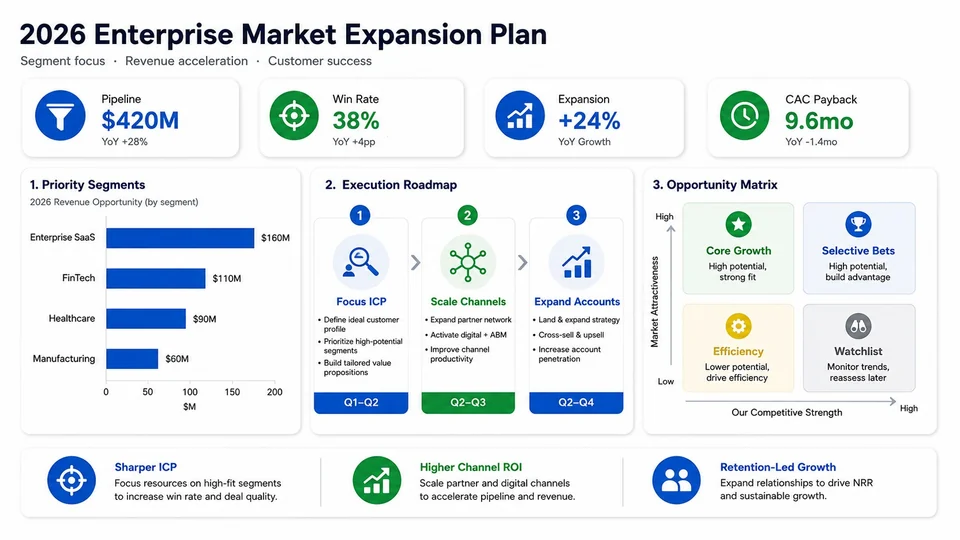
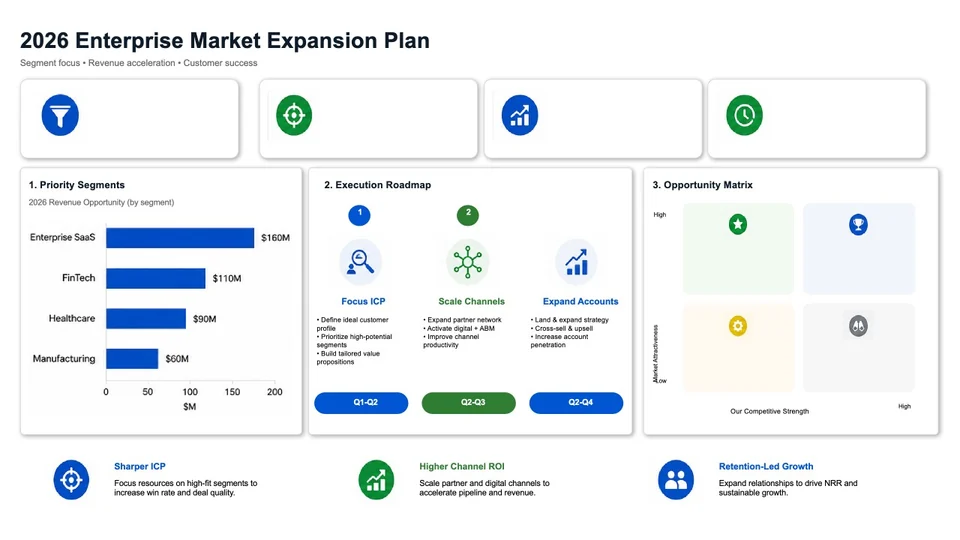
This is a general AI slide conversion demo. The left image is the source; the right is a generated preview of the converted PPTX. Download the matching sample PPTX above to inspect its text and shapes.
Pay as you go, no subscription. One credit converts one slide, and credits you buy never expire. Packs: 30 credits for $5.99, 80 for $11.49, 200 for $24.99, which works out to about $0.20, $0.14, or $0.12 per slide. Pay by card. New users get free credits on sign-in, valid for 7 days. See full pricing →
| Your file | Next step | Editing route |
|---|---|---|
| Canvas slides | Export to Google Slides, then download PowerPoint (.pptx) | If the content you need to edit is an image, save it as an image or PDF first. |
| Editable PPTX | Edit the required objects in the existing file | Use the editable original directly. |
| Slide image or screenshot | Save the original image or crop the screenshot | Convert the image to rebuild editable text and shapes. |
| Image-based PDF | Choose the pages you need | Convert selected pages into one PPTX. |
For Canvas slides, use Share & export → Export to Slides, then download PowerPoint (.pptx) from Google Slides. If an existing PPTX already lets you edit the content you need, use it directly. Image2PPT converts generated images, screenshots and image-based PDFs into editable slides.
Yes, when the material you need is an image. Crop to the slide area and save as PNG. For Canvas slides, try the official export before taking screenshots.
Yes. Upload the saved image. Use the clearest original available so that small text and details are readable.
There's no Workspace add-on. If you want to automate conversions, the public Image2PPT API turns Gemini-generated images or PDFs into editable PPTX files.
Image2PPT uses common Office fonts to reconstruct the text while preserving the layout and colors with high fidelity. Open the PPTX and select another font if your organization requires one.
Yes. Google Slides opens the PPTX with text and shapes still editable, and the same file works in PowerPoint, Keynote, and LibreOffice Impress.
No problem. English, Chinese, Japanese, Korean, and major European languages are rebuilt in the original language. Nothing gets translated.
Yes. Upload an image-based PDF with up to 50 pages per job, merged into one PPTX. Select a page range to convert only the pages you need. If you already have editable slides, export and edit them directly.
Files are processed on Image2PPT's servers, and both the originals and the converted PPTX are kept until you delete them or close your account. A few narrow exceptions — enterprise API results, plugin uploads and complex pages on free accounts, uploads whose conversion never started, and clearing older files when storage runs short — are set out in the privacy policy. Files are not used to train any model.
Yes. New users get free credits when they sign in, valid for 7 days. That's enough to run a few Gemini slides through before you buy a pack. No subscription, and credits you buy never expire.
Upload a screenshot, PDF, or AI slide image and download a PowerPoint you can edit right away. New users get free credits to try it.
Convert an image now