
PDF to Google Slides, with slides you can edit
Google Slides won't open a PDF as a presentation. If a deck reached you as a PDF, or all you have is a scanned or exported copy, there is no button in Google Slides that turns it back into slides. The route that works: convert the PDF to an editable PowerPoint file with Image2PPT, then import that file into Google Slides. Titles, text, shapes, and tables arrive as objects you can click and change.
This is for slide PDFs: decks exported from PowerPoint, Keynote, or Canva, scanned presentations, and image-only PDFs from AI slide tools such as NotebookLM.
How to get a PDF into Google Slides
Part 1: Convert the PDF to PPTX
- Upload the PDF. Open the Image2PPT converter and drop in your PDF, up to 35MB per file. New accounts can sign up and try 3 slides free.
- Choose the pages. In the Pages field next to the file, type the slides you need, such as
1-5or3, 6-8. One job takes up to 50 pages. - Download the PPTX. Each page becomes one slide. You get a standard .pptx file with the slides in page order.
Part 2: Import the PPTX into Google Slides
As a new presentation:
- Open Google Drive and click New → File upload, then choose the .pptx file.
- When the upload finishes, double-click the file, or right-click it and choose Open with → Google Slides. You can start editing right away.
- To keep a Google Slides copy rather than a PowerPoint file stored in Drive, choose File → Save as Google Slides.
Into a deck you already have:
- Open the deck in Google Slides and choose File → Import slides.
- Go to the Upload tab and choose the .pptx file.
- Click the slides you want, tick Keep original theme if they should keep their own look, and click Import slides.
Tested: a converted PDF slide in Google Slides
We exported a board-report slide to PDF, converted it with Image2PPT, and brought the PPTX into Google Slides with File → Import slides. These screenshots are from that test.
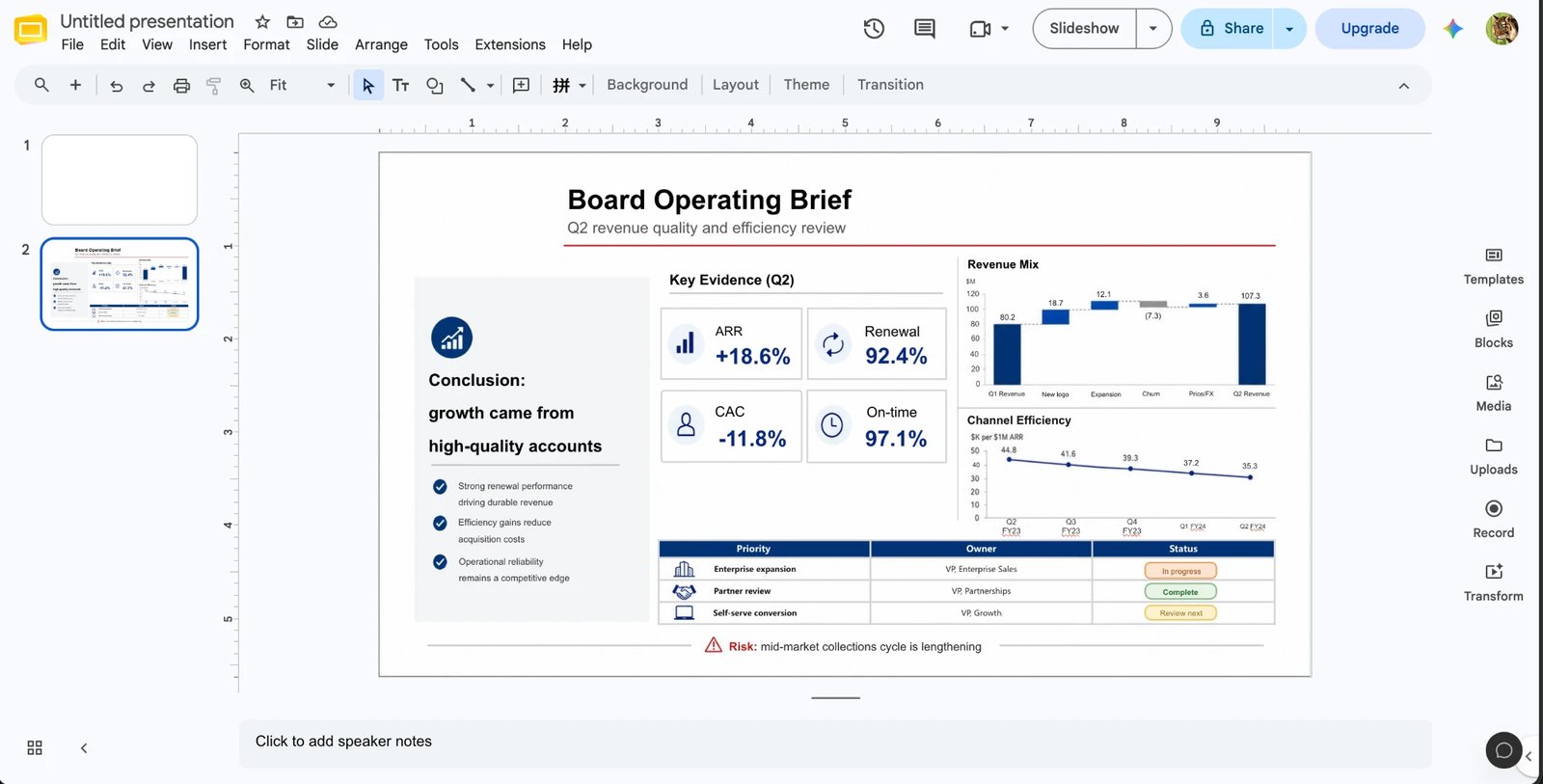
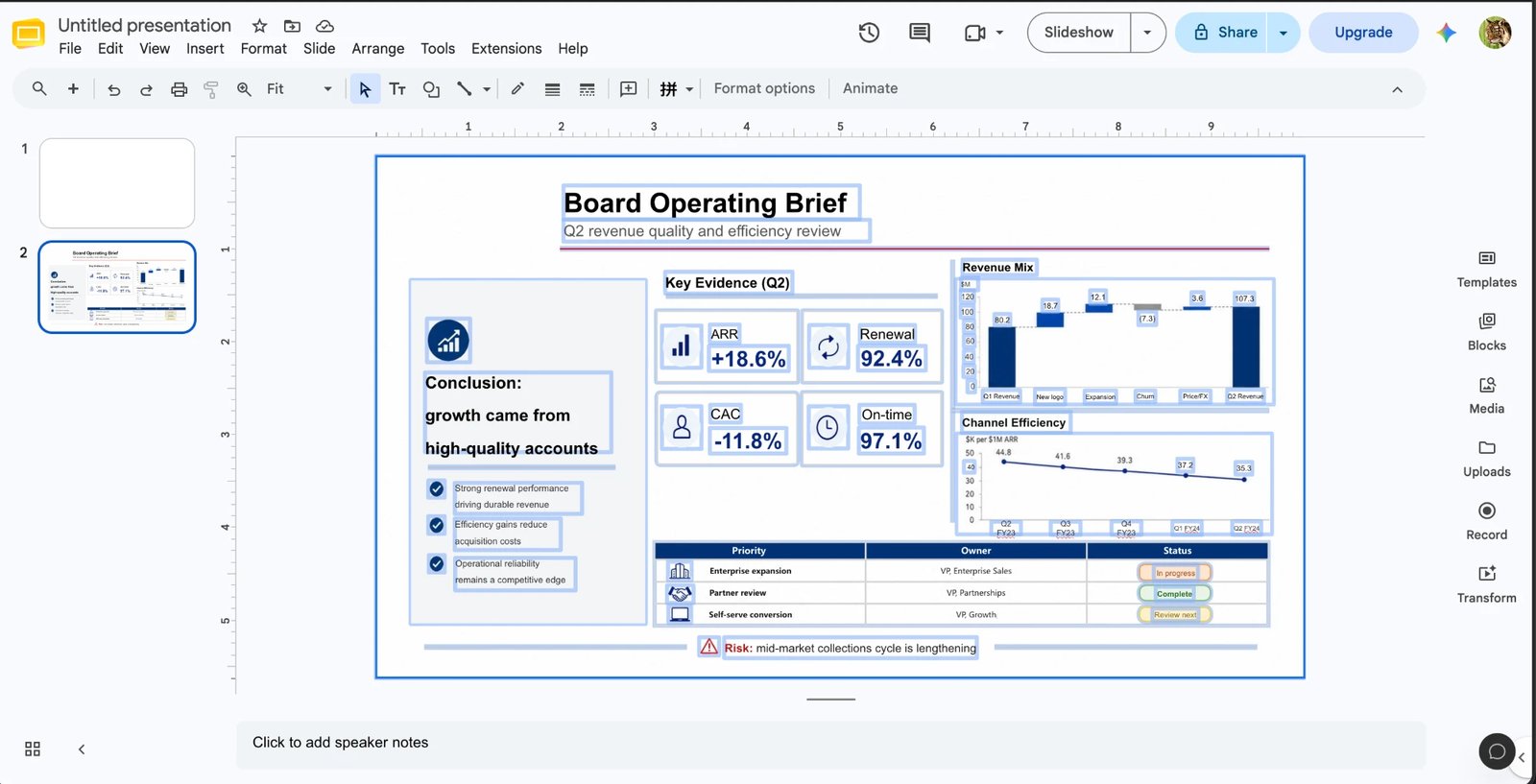

One thing to watch: when we replaced “Brief” with the longer word “Review”, the title wrapped onto a second line and ran into the subtitle. If you make a line of text longer, widen its box or drop the font size a little.
What you can edit after the import
- Text: titles, paragraphs, bullet lists, labels, and numbers come in as Google Slides text boxes. Click and type.
- Shapes: cards, boxes, callouts, lines, and arrows come in as shapes you can move, resize, and recolor.
- Tables: tables with clear rows and columns come in as real tables, so you can change a cell or add a row.
- Images: photos, illustrations, logos, and detailed icons stay as images in their original positions. You can move, crop, or replace them, but not edit what is drawn inside them.
- Charts: it depends on the design. Simple bar and line charts are often rebuilt from shapes, as in the test above; dense or decorative charts stay as images.
Keeping those parts as pictures is what lets each slide still look like the original page, while the words and numbers you are most likely to change become editable.
Check these after importing
Google Slides reads PowerPoint files well, but it has its own font library and text engine. A quick pass over the deck catches the usual differences:
- Fonts. If the file uses a font Google Slides doesn't have, it shows a similar one instead. Select the text and pick a font from the font menu; More fonts opens the full Google Fonts list if you need to match your brand.
- Line breaks. A substitute font can be a little wider or narrower, so a title may wrap onto a second line or a label may run past its box. Widen the text box or drop the font size by a point.
- Tables. Click into a few cells and confirm each value sits in the right one. If a font change makes text wrap, rows get taller; drag the row borders to tighten them.
- Slide size. When you import into an existing deck with a different page size, check that nothing near the edges is cut off or stretched.
FAQ
Can I import a PDF straight into Google Slides?
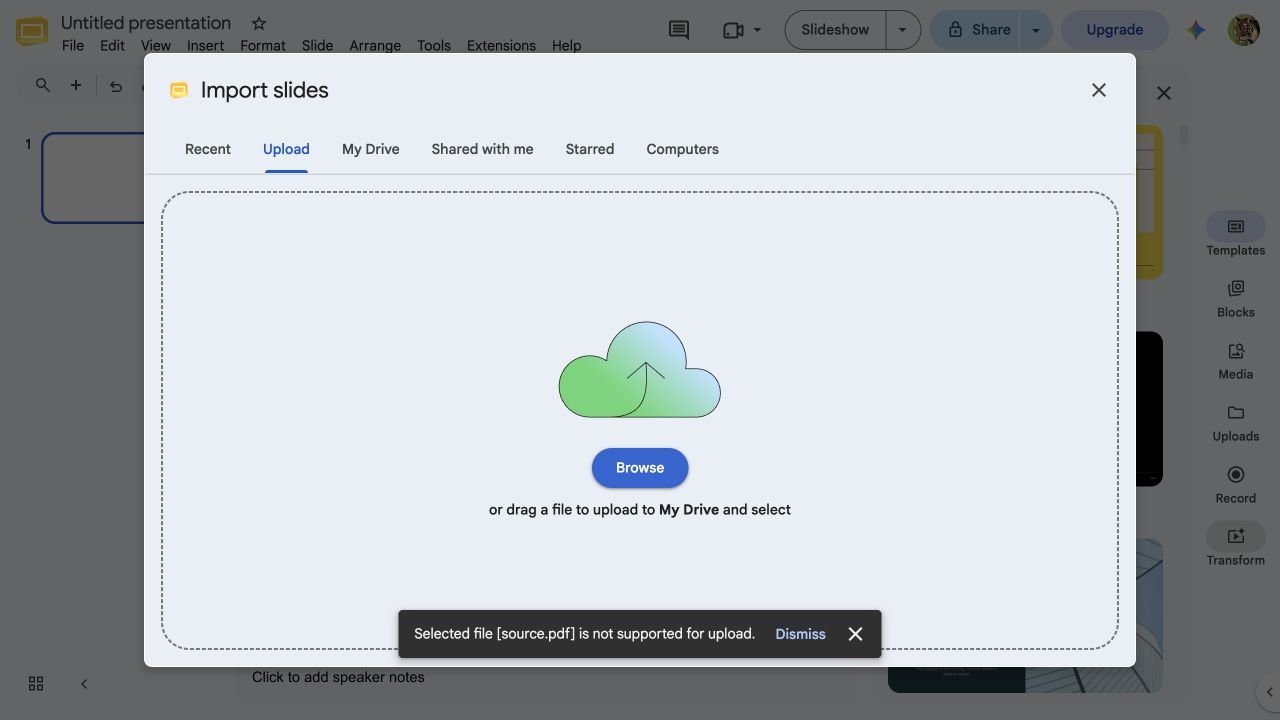
Not as editable slides. File → Import slides in Google Slides only takes presentation files: when we uploaded a PDF there, it answered “Selected file is not supported for upload.” The usual workaround is to save each PDF page as an image and insert it, which gives you slides that are each one big picture. Opening the PDF with Google Docs pulls out the text, but into a document, and the slide layout is gone. Converting the PDF to PPTX first is what gets you slides you can edit.
Does it work with scanned slides?
Yes. Image2PPT reads every page as an image, so a scanned slide goes through the same steps as an exported one. Scans that are straight, sharp, and show the full slide give the cleanest text.
Can I convert a multi-page PDF?
Yes. One job converts up to 50 pages into a single PPTX, one slide per page. For a longer PDF, convert it in parts, for example pages 1-50 and then 51-100, and bring both files into the same Google Slides deck with File → Import slides.
Do I have to convert every page?
No. Type the pages you want in the Pages field, such as 1-5 or 2, 4, 9-12. You only use credits for the pages you pick.
What file do I download?
A standard .pptx PowerPoint file. Google Slides imports it directly, and the same file opens in PowerPoint, Keynote, and LibreOffice Impress if anyone on your team works there.
Will it look the same in Google Slides as in PowerPoint?
Layout, colors, and images carry over. The difference you are most likely to notice is fonts: Google Slides swaps in a similar font when it doesn't have the one the file uses, and that can move line breaks. The checks above cover what to look at.
What it costs
Sign up to try 3 slides free. No credit card required. Your free credits last 7 days. After that, there is no subscription: you buy credit packs and spend one credit per PDF page, and purchased credits stay on your account until you use them. The smallest pack is 30 credits for $5.99. Importing the PPTX into Google Slides costs nothing extra. See full pricing.
Related guides
Convert your PDF, then open it in Google Slides
Upload a slide PDF, pick the pages, and download a PPTX that's ready to import. Sign up to try 3 slides free.
Convert PDF to PPTXNeed to edit the PDF as a document, not as slides? Convert it to a Word file.