
PNG to Word Converter — make screenshot text editable
Turn PNG screenshots into editable Word text and tables. Upload here, organize scrolling captures, and compare a real document sample.
1 credit = 1 PPT page or 5 Word pages
Please upload files you have the right to use and are comfortable processing with an online tool. See our Terms.
Turn a PNG screenshot into text you can revise
A PNG screenshot is useful for sharing what was on a screen, but it does not carry the document's paragraphs, headings or cells. Copying that PNG into Word leaves the writing inside a picture. Upload it here when you need to revise the wording, reorganize a document excerpt or work with a captured table. The output is a DOCX with recognized text and document structure, ready for a careful check against the screenshot.
PNG is often a good source for interface text and digital documents because it preserves sharp edges without JPEG compression. It still only contains the pixels that were captured. A tiny screenshot of a dense page remains tiny even when saved in a lossless format. Choose the original screenshot, with the largest readable text available, instead of an image copied from a thumbnail or chat preview.
Capture the document, not the browser around it
Before taking a screenshot, enlarge the document enough to read small punctuation and table values. Include every line you need, and keep column headings with their data. You can crop unrelated tabs, navigation bars and chat controls, while leaving the actual document intact. A browser toolbar is visible text too; removing it from the source helps you review just the content you want in Word.
If the original PDF or document is available, use that file rather than capturing it again. A screenshot can omit footnotes below the fold or cut a wide table at the right edge. For a long page, look for a full-page capture or export option first. Do not assume the visible portion of a scrollable panel represents the entire document.
Avoid duplicated text in scrolling captures
Multiple screenshots of a long page often overlap. The last paragraph in one capture may appear again at the top of the next. Check for that overlap before uploading, because the converter receives separate images rather than a continuous browser session. Prepare non-overlapping captures with complete lines, then select them in reading order. Each image counts as one page in the conversion.
Also check what happens at the seams. A line split between two captures, a table header separated from its rows or a footnote captured without its marker can be difficult to interpret. Prefer a complete section or table in each image when possible. If you have already converted overlapping images, compare the boundaries in the Word file and remove duplicate paragraphs only after confirming them against the source.
What an editable table means
When a table is recognized, its content becomes Word cells that you can edit, rather than a picture of the spreadsheet or web page. Review the row and column count, merged headings, decimals and units before using it. A displayed spreadsheet value is just what the screenshot shows: the conversion does not recover the original formula, hidden rows or workbook links.
For a form or dashboard, visual placement alone may not establish the intended reading order. Check labels next to their values and inspect small text beneath charts. Graphs, icons, photographs and some complex visual elements may remain images. If your task depends on underlying spreadsheet calculations or chart data, obtain the original spreadsheet from its owner rather than treating a screenshot conversion as a data export.
Check the result while editing
Open the DOCX and select a sentence: the recognized writing should behave as text you can change. Use the Styles pane to inspect headings. Add a sentence to a paragraph and see how the following material moves. Word lays out flowing content, so its line endings and pagination can differ from a fixed screenshot, particularly when a different font is installed on the computer opening it.
Review product codes, URLs, email addresses and punctuation carefully. Interface screenshots can mix small fonts, faint disabled labels and colored backgrounds; the most visually subtle text deserves the most attention. Keep your PNG as a reference until the revised document is approved. If a capture contains private messages or personal information, remove unrelated content before uploading and use only material you have permission to process.
A real public sample: original and Word result
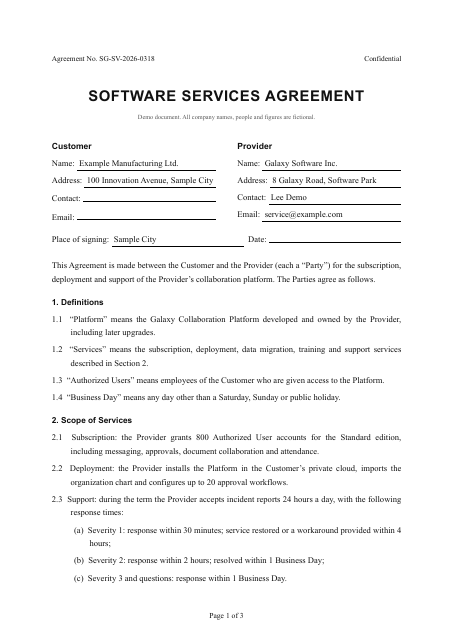
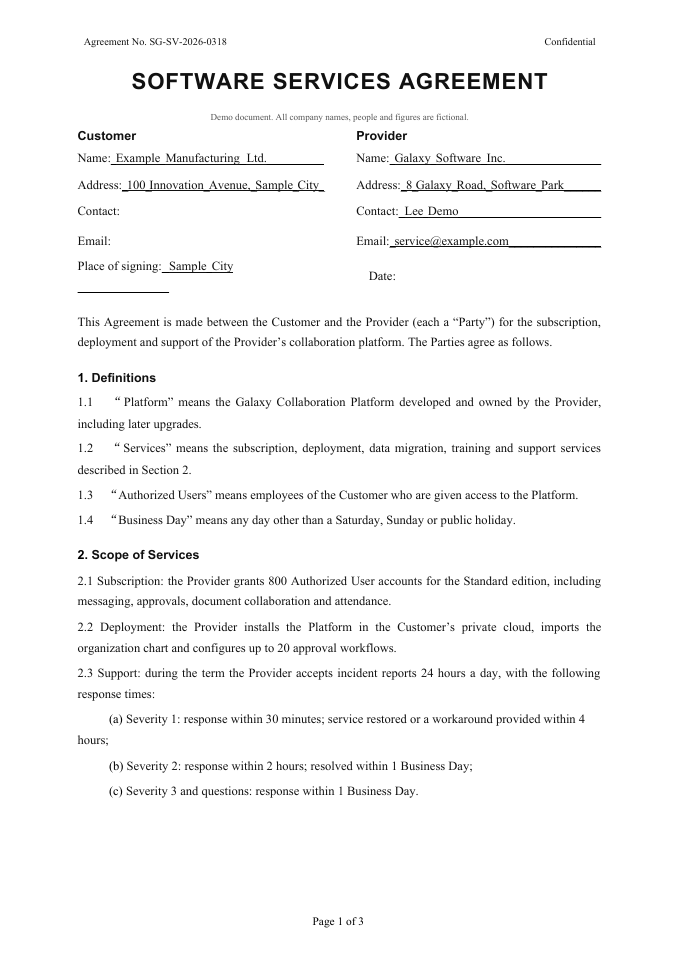
This is the existing public software services agreement sample, supplied as a PDF, not a camera photo or screenshot. The previews show the first page of that PDF and the actual, unedited Word output. They illustrate document structure and layout; they are not a separate JPG or PNG conversion test. Download both files to inspect the full document, including the recognized tables and headings.
Before you start and after you download
You can select files on this page; signing in is required before conversion starts. Each image counts as a page and uses page-based credits. Check the available balance in your account before starting. Upload only documents you have permission to process online. Keep the original until your edits have been reviewed. You can permanently delete a conversion and its files from your conversion history. For sensitive documents, review the privacy policy and remove unrelated personal information before uploading.
Frequently asked questions
Can I combine several images into one Word file?
Yes. Select images in page order; the upload list determines their order in the Word file. Each image counts as one page. Clear the selection and choose again if the order is wrong.
Will I get editable text or just pictures?
Recognized body text, headings and tables are editable. Stamps, signatures, photos and some complex content may remain images. Check blurred or obscured writing against the original.
Do I need an account to convert?
Yes. You can select files first, but you need to sign in before conversion starts. Your account shows your available credits and page allowance.
Related conversions
Pages and credits
1 credit = 1 PPT page or 5 Word pages
1 credit covers 5 Word pages; a partial group also costs 1 credit. Each document can contain up to 150 pages. If conversion fails or you stop it, all credits for the job are refunded. Word and PPT use the same credit balance.