
Picture to Word Converter — turn paper photos into editable text
Convert phone pictures of paper documents to Word. Upload here, prepare clear page photos, and compare the original and a real Word result.
1 credit = 1 PPT page or 5 Word pages
Please upload files you have the right to use and are comfortable processing with an online tool. See our Terms.
From a picture of paper to a document you can edit
Someone hands you a printed notice, a policy or several pages of an agreement, and the only practical way to take it away is a phone camera. A picture-to-Word conversion is useful when you want to update the writing or reuse a table without typing every line again. Upload the page pictures here. The writing is recognized and organized into Word content, rather than placing an uneditable photo on each page.
The most useful preparation happens before you press the shutter. A clear photo of a flat page provides better source information than a dramatic angle or a picture taken across a desk. Check the actual letters after zooming in, not just whether the page looks sharp on a small phone screen. Keep an original copy of every picture for comparison after conversion.
Photograph paper with even light and a straight view
Place the document on a flat surface and hold the camera parallel to it. Include all four edges and avoid cutting off a page number or a table at the bottom. Move your phone or the light source until your hand and phone no longer cast shadows over the writing. On glossy paper, look for reflections that hide individual words even when the rest of the page looks readable.
Take one picture per page. For a bound book, flatten the page as far as you safely can and check the curved inner margin. If a line disappears into the binding, take another view rather than expecting the converter to supply the missing words. Review the photo immediately while the paper is still available, so you can retake a blurred or incomplete page without requesting the document again.
Organize a set of phone pictures before converting
Choose the files in page order and review the upload list. The pictures are combined into one Word document in that order, with each image counting as a page. If a page is misplaced, clear the list and select the set again before you start. Check that appendices, reverse sides and pages with only a signature or short note have not been left out of the selection.
Avoid mixing alternate photos of the same page into the final set. Pick the clearest complete version of each page instead. A second angle can help you personally read a difficult word, but uploading both as consecutive pages also repeats the page content. For an existing multi-page scanned PDF, upload the PDF directly through the scanned document tool rather than photographing a screen or converting it into camera pictures.
Inspect names, figures and handwritten additions
Begin your review with facts that would be costly to get wrong: personal names, account references, dates, quantities and amounts. Check whether a handwritten correction or a stamp overlaps the printed text. Where the source is unclear, compare it with the paper or ask the document owner to confirm it. A polished Word paragraph is a convenient editing surface, but it is not evidence that an obscured word was read correctly.
Stamps, signatures, photographs and some complex content may remain images. Keep them with the relevant paragraph when you edit the document. For tables, compare each heading with the values beneath it and look carefully at the final row, which can be easy to crop in a phone photo. Try editing a cell in Word to confirm that a recognized table supports the changes you intend to make.
Continue working with real Word structure
Recognized headings use Word styles, which makes it easier to reorganize a long document. Recognized clauses can use automatic numbering so inserted items continue the sequence. If the file includes a table of contents, update it in desktop Word after editing. Review the resulting page numbers and page breaks before sending the file to someone else.
The editable result can flow onto different pages from the photographed paper. Longer replacement text, changed fonts and different Word environments all affect line wrapping. Check tables, headers, footers and images after saving and reopening the document. Keep the original pictures alongside the DOCX when you share a draft for review, so readers can check uncertain passages against the exact source instead of relying on memory.
A real public sample: original and Word result
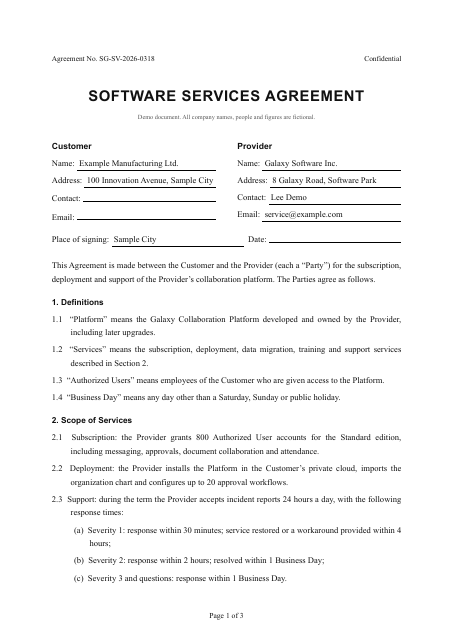
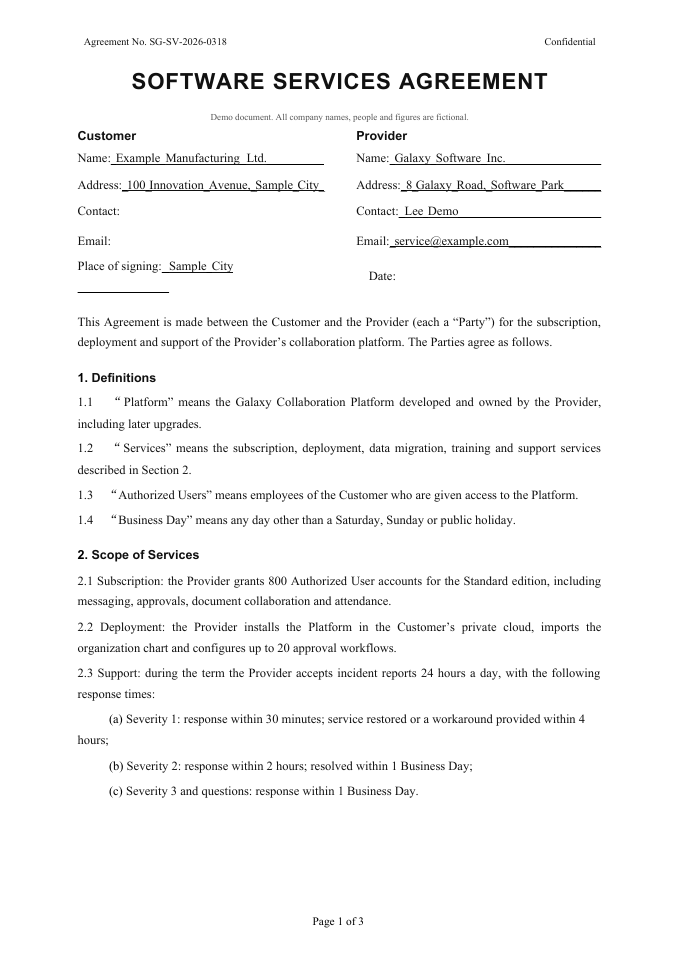
This is the existing public software services agreement sample, supplied as a PDF, not a camera photo or screenshot. The previews show the first page of that PDF and the actual, unedited Word output. They illustrate document structure and layout; they are not a separate JPG or PNG conversion test. Download both files to inspect the full document, including the recognized tables and headings.
Before you start and after you download
You can select files on this page; signing in is required before conversion starts. Each image counts as a page and uses page-based credits. Check the available balance in your account before starting. Upload only documents you have permission to process online. Keep the original until your edits have been reviewed. You can permanently delete a conversion and its files from your conversion history. For sensitive documents, review the privacy policy and remove unrelated personal information before uploading.
Frequently asked questions
Can I combine several images into one Word file?
Yes. Select images in page order; the upload list determines their order in the Word file. Each image counts as one page. Clear the selection and choose again if the order is wrong.
Will I get editable text or just pictures?
Recognized body text, headings and tables are editable. Stamps, signatures, photos and some complex content may remain images. Check blurred or obscured writing against the original.
Do I need an account to convert?
Yes. You can select files first, but you need to sign in before conversion starts. Your account shows your available credits and page allowance.
Related conversions
Pages and credits
1 credit = 1 PPT page or 5 Word pages
1 credit covers 5 Word pages; a partial group also costs 1 credit. Each document can contain up to 150 pages. If conversion fails or you stop it, all credits for the job are refunded. Word and PPT use the same credit balance.