Google Workspace users
Gemini suggests a slide in Workspace or the standalone app — looks great, but you need to swap the numbers, restate the headline, and apply your team's brand before it ships. Editable elements are the only way.
Gemini slides are flat images. When the Gemini app, AI Studio, or a Workspace context generates a slide for you, the response is a single image (rendered by Imagen or the Gemini-app image pipeline). The text reads cleanly but is locked inside the bitmap — PowerPoint cannot click into it. Image2PPT is the bridge: drop the Gemini slide image in, get back a PowerPoint file with real editable text boxes, shapes, and tables. The output is standard PPTX — it opens cleanly back in Google Slides, in PowerPoint, and in Keynote.
Gemini suggests a slide in Workspace or the standalone app — looks great, but you need to swap the numbers, restate the headline, and apply your team's brand before it ships. Editable elements are the only way.
Gemini drafts a visual aid for class. Each section needs to be localized — examples, labels, units of measurement. Image-locked slides break that loop; rebuilt PPT keeps it open.
Gemini Deep Research surfaces a multi-slide deck summarizing sources. For a stakeholder presentation you need to add your interpretation, edit numbers, and add citations — all impossible inside a flat image.
| Source | How to capture | Notes |
|---|---|---|
| Gemini app image response | Long-press / right-click → Save image, or download from the response | PNG preferred — sharper text rendering. |
| AI Studio Imagen output | Save the image from the AI Studio interface | Imagen 3 and Imagen 4 both supported. |
| Gemini in Workspace | Screenshot the suggested slide or save image to Drive | One slide per image for best reconstruction. |
| Gemini Deep Research deck | Export the deck as PDF (Slides → File → Download → PDF), or screenshot pages | PDF support up to 50 pages, page-range selection available. |
| Batch (multiple slides) | Up to 50 slides per job (PDF pages + images combined) | Image2PPT assembles them into a single PPTX deck. |
Headlines, body copy, bullets, KPI numbers, table cells with labels and values, simple shapes (rectangles, callouts, arrows), two-column comparisons, captions. Every item becomes clickable text or a clickable shape in Google Slides, PowerPoint, Keynote, and LibreOffice Impress.
Photographic backgrounds, illustrated characters, complex decorative icons, busy charts with overlapping labels, watermarks, stylized gradient backgrounds. These remain embedded image elements — movable and resizable, but not redrawable stroke-by-stroke.
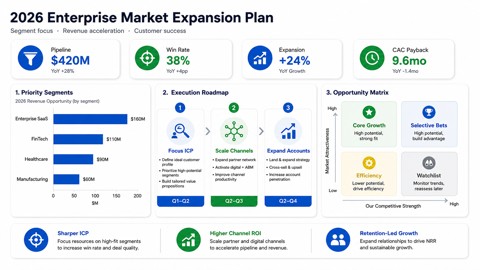
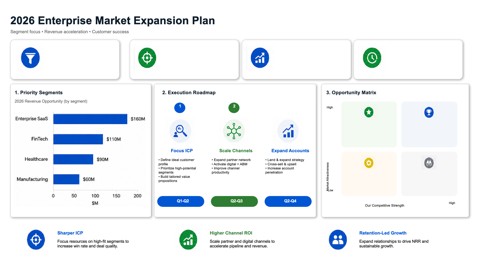
Below is an AI-generated slide image converted through the same workflow you would use for a Gemini or Imagen output. The left image is the source bitmap; the right image is a preview of the editable PPTX. The rebuilt elements on the right can be clicked and modified in Google Slides or PowerPoint where possible.
Pay-as-you-go, no subscription. One credit converts one slide. Credits remain valid long-term. Three tiers: $4.99 USD for the smallest pack, scaling to $22.99 USD for the largest. New users get free credits on first sign-in. See full pricing →
| Image2PPT | Gemini direct image output | Gemini → Google Slides handoff | |
|---|---|---|---|
| Real editable text boxes | Yes | No (flat image) | Yes (in Slides templates) |
| Preserves the Gemini visual you liked | Yes — rebuilds the same layout | Image is the source | Limited — uses Slides templates instead |
| Output portable as PPTX | Yes — native PPTX | No | Yes — export from Slides |
| Multilingual support | EN, CN, JP, KR, EU languages | Yes (image rendering) | Yes (Slides default) |
| Pricing model | Pay-as-you-go, credits remain valid long-term | Included in Gemini plan | Included in Google Workspace |
When Gemini generates a slide, the response is an image rendered by Imagen or a similar image model. Text in that image is pixels, not text data. PowerPoint cannot edit pixels. Image2PPT fills the gap by reading the image and rebuilding editable elements.
Yes. Screenshot the slide image (full screen or selection) and save as PNG. Upload to Image2PPT as you would any image file.
Yes. Output quality depends on source image clarity, not the specific Google model version.
There is no Workspace add-on yet, but the public Image2PPT API can convert Gemini-generated images or PDFs into editable PPTX files.
Layout is preserved. Proprietary Google fonts map to standard PowerPoint/Office fonts (Calibri, Arial, Microsoft YaHei, SimSun) due to licensing. You can swap to any installed font once the PPTX opens.
Yes — Google Slides opens PPTX with editable elements intact. The same file also opens in PowerPoint, Keynote, and LibreOffice Impress.
Supported. English, Chinese, Japanese, Korean, and major European languages are reconstructed in the original language. Right-to-left scripts are handled best-effort.
Yes — export the deck as PDF from Slides and upload it. Up to 50 pages per PDF, with page-range selection so you only pay for the pages you need.
Files are processed on Image2PPT's servers, the converted PPTX is held for 30 days, and both inputs and outputs are deleted afterwards. Files are not used to train any model.
Yes. New users get free credits on first sign-in — enough to convert a few Gemini slides before deciding to buy a credit pack. No subscription. Credits remain valid long-term.