
AI Nailed Slide Design. The Last Mile Is Editability.
For years, “AI presentation maker” meant a tool that could drop a title, a few bullet points, and some stock photos onto a template a bit faster than you could. Handy, but it rarely felt designed. Image models changed that. Ask ChatGPT or Gemini for a slide today and you can get a dense systems diagram, an illustrated lesson, a cinematic product launch, or a comic-style explainer, all in one coherent image.
So slide design feels close to solved. Then you hit the last step. You spot a typo in the title, your manager wants Q3 instead of Q2, or the NotebookLM deck you exported needs one number updated, and there is nothing to click into. The title is pixels, the chart labels are pixels, and the cards won’t budge. The design is done; the PowerPoint work hasn’t started.
Our take: the best AI slide workflow is turning into image first, editable PowerPoint second. Let image models go wild on the visuals, then rebuild the result into objects you can actually revise and send.
Three ways the industry generates slides
Most AI presentation products follow one of three approaches. Each is useful, but each optimizes for a different constraint.
| Approach | What it does well | Where it struggles |
|---|---|---|
| Generate PPTX directly | Produces native, editable files from the start. | Complex visual intent must be translated into coordinates, shapes, fonts, and layout instructions. Free-form illustration and dense composition are difficult to express reliably with standard PowerPoint primitives. |
| Build slides in HTML | Fast, structured, responsive, and effective for repeatable content layouts. | Often converges on regular cards, columns, and text blocks. Free-form diagrams, editorial illustration, comics, and unusual visual compositions are harder to author and harder to export faithfully to PowerPoint. |
| Generate slide images | Offers the greatest visual freedom. A model can compose typography, illustration, diagrams, maps, atmosphere, and texture in one canvas. | The result is normally a flat bitmap. It looks like a slide but does not behave like one. |
Direct PPTX generation is the correct choice when editability and predictable structure matter more than visual ambition. HTML is excellent for clean, repeatable layouts. But when the brief asks for a rich explanatory diagram, an illustrated narrative, or a visual language that does not fit a standard template, image generation has a decisive advantage: it is not constrained by the vocabulary of PowerPoint shapes or browser layout.
The missing second half: reconstruction
If image generation handles the look, the obvious next question is how to get editability back. The usual answer is text recognition: read the words and drop text boxes on top of the picture. That lets you type, but it doesn’t give you a slide back.
A real slide is a layered document. Text belongs to cards and charts. Shapes have fills, borders, stacking order, and relationships. Arrows connect regions. Removing baked-in text creates holes that must be repaired. PowerPoint then introduces its own font metrics, line wrapping, minimum sizes, and rendering behavior.
Useful reconstruction therefore has to solve several problems together:
- Object understanding: distinguish text, containers, connectors, charts, illustrations, icons, and decoration.
- Geometric precision: recover practical object bounds and stacking order instead of letting text and visuals drift apart.
- Background restoration: remove the original baked-in text and assets without leaving white blocks, duplicated letters, or visible residue.
- Rendering discipline: balance fidelity, editability, and compute cost while respecting how PowerPoint actually lays out text and shapes.
That’s why “the text is editable” isn’t enough. A text overlay looks fine in a screenshot, then falls apart the moment you drag a title box aside: the old words are still sitting underneath, the card isn’t a real card, and the layout is still stuck inside the background image.
What Image2PPT rebuilds—and what it deliberately preserves
Image2PPT uses a multi-stage reconstruction system rather than asking one model to redraw the entire slide in a single step. It identifies the page structure, rebuilds editable text and regular geometry, extracts detailed visual elements as independent pictures, restores the background, and writes the result into a native PPTX.
The important product decision is not to force every pixel into a vector shape. Text and simple structure should be editable because people routinely change them. Detailed maps, charts, illustrations, and icons should remain visually faithful when redrawing them would make the page worse. Those regions can still become independent picture objects that users can move, crop, replace, resize, or delete.
So what you get back isn’t one locked screenshot, it’s a set of objects you can actually work with: the words and structure you change often are editable, and the complex visuals come through in high fidelity instead of being redrawn badly.
A deliberately difficult example
To test that idea, we generated a dense urban-water digital-twin slide. It combines a central city illustration, maps, charts, equations, labelled cards, icons, legends, and long connector paths. This is close to a worst-case input for reconstruction, not a carefully chosen title slide.
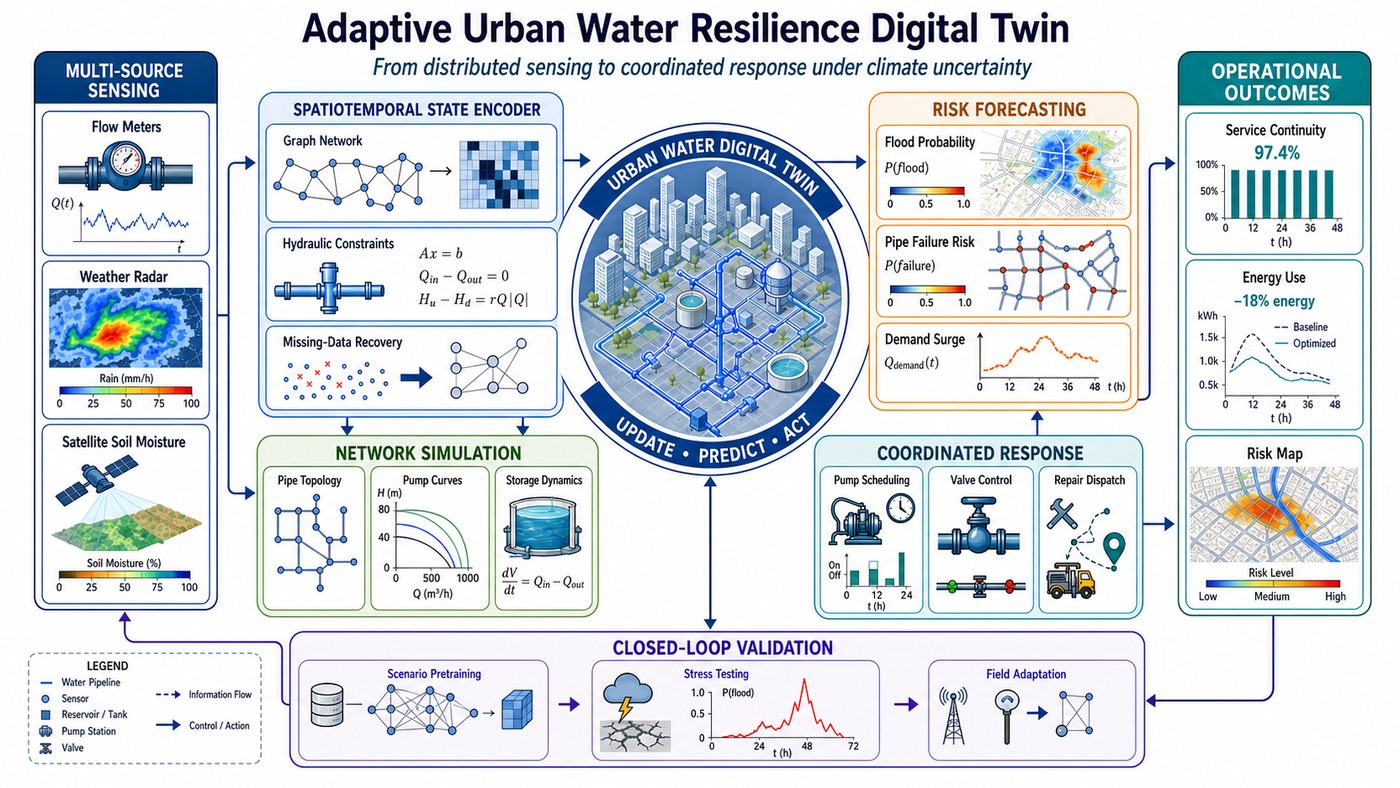
After conversion, we opened the generated file in Microsoft PowerPoint and used Select All. The screenshot below is intentionally busy: every selection outline reveals a separate PowerPoint object.
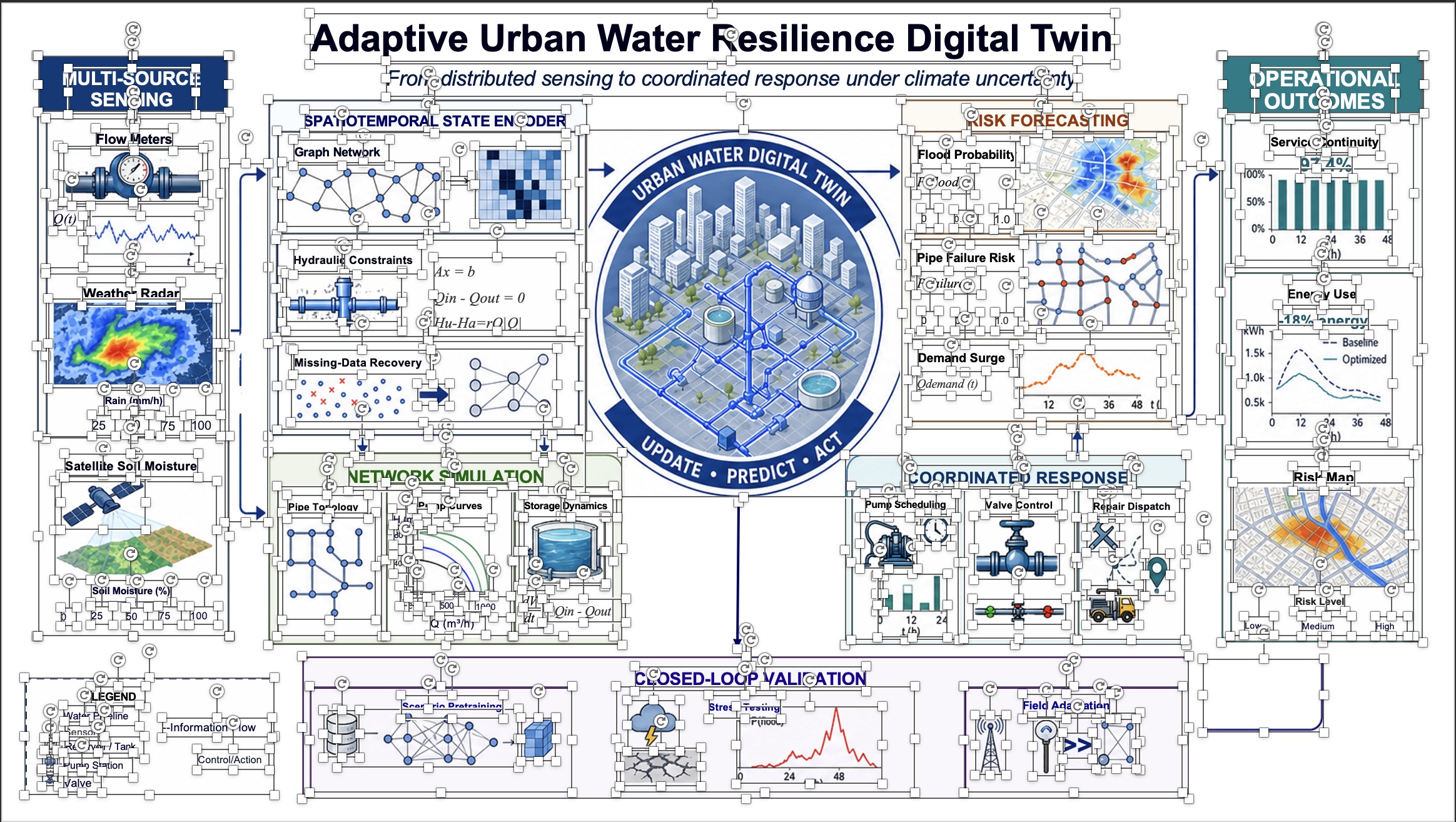
The 78 text boxes can be retyped. The 33 shapes can be moved, resized, or restyled. The 54 image objects preserve complex visual regions such as maps, diagrams, charts, and illustrations, and each object can be repositioned, cropped, replaced, or removed independently.
The page is no longer a picture you can only look at. It’s a working slide you can keep editing, pass around for feedback, and hand to a client.
What this changes about the AI presentation workflow
The old assumption was that a presentation model had to produce PowerPoint directly. That requirement forces visual creativity and document structure into the same generation step. A two-stage workflow separates them:
- Use an image model to explore and generate the strongest visual solution.
- Use reconstruction to recover editable text, layout, and independent visual objects.
- Finish in PowerPoint: fix the copy, swap the numbers, move things around, switch to your brand font, add a logo, and send it off.
This does not make direct PPTX or HTML generation obsolete. Structured decks, repeated templates, and data-driven reporting still suit those approaches. The point is narrower: image generation removes the visual ceiling, and reconstruction removes the locked-image penalty. Together they make a class of slides possible that neither approach handles well alone.
The last mile is the product
Generating a beautiful image is impressive. Handing a teammate a file they can tweak five minutes before the meeting is useful. The gap between those two, a nice-looking output versus a document you can actually work in, is where the remaining engineering lives.
That second half is what Image2PPT is built for: the text and structure you need to change come back as editable objects, and the complex visuals stay in high fidelity. AI may have finally figured out how a slide should look. The next job is putting that slide back in your hands.
Turn an AI-generated slide image into editable PowerPoint
Start with your trickiest slide. An AI-generated image, a screenshot, or an exported PDF all work. Open the result in PowerPoint, hit Select All, change a title or a number, and see how much rebuilding it saves you.