Turn slide images from Codex into editable PowerPoint
The slide Codex just made for you is a picture. It looks like a deck — headline, bullets, a tidy table — but every one of those is paint on a canvas. You cannot click into the headline to fix a typo, cannot drag the box, cannot change a number in the table. The usual escape route is to save the image, open a browser, upload it somewhere, download the result, and carry it back. The Image2PPT plugin removes that round trip: the images go straight from your conversation to Image2PPT, and an editable PPTX comes back as a download link in the same task.
🎁
Free credits when you first sign in — convert a few slides before deciding.
Who this is for
Engineers who write decks under protest
You live in the terminal, the architecture review is on Thursday, and drawing boxes is not how you want to spend Wednesday night. Sketching the slide in the conversation is fast. Getting something your team can actually edit afterwards is the part that used to break.
Anyone iterating on a deck with a colleague
The second draft always needs a number changed, a label translated, a logo swapped. If the slide is a flat picture, every one of those edits means going back and regenerating the whole thing — and losing the parts that were already right.
People handing the deck to someone else
A picture-shaped deck becomes the recipient's problem. They open it, try to fix a date, and discover there is nothing to click. Handing over real text boxes and real shapes means they can finish the work without coming back to you.
How to install it
Image2PPT has exactly one address, and all three clients connect to the same one:
https://image2ppt.com/mcp
It is a Streamable HTTP MCP server that uses OAuth. That means there is no API key to copy, no token to paste, and no configuration file you are forced to edit. What you do is put that address into your client, then sign in to your own Image2PPT account once in a browser and approve the request.
The three routes below are independent. Pick one and finish it — you do not need all three. Today, though, only ② can complete authorization: the local callback ① and ③ rely on has not shipped yet. Details are in each section:
A few clicks in the Codex desktop app's menus. This is the route almost everyone should take. Local-callback authorization is not live yet — read the notice at the top of that section first.
For using it on chatgpt.com rather than in the Codex App. It is a separate setup that does not carry over from the first route. Unaffected by the local-callback rollout, and works today.
The command-line equivalent. Not required — if you use the app, you never have to touch a terminal. It authorizes the same way as ①, so it is waiting on the same rollout.
① Codex App (recommended)
Set up inside the Codex app
Read this first: local-callback authorization is not live yet
The Codex App and the CLI both receive the authorization result through a local callback address. Server-side support for that callback is written but not yet deployed — so until it ships, step 9's Authenticate will not complete: the browser returns invalid_redirect_uri. This is not intermittent and it is not something you mistyped; the server currently in production rejects every local callback.
Until then, use ② ChatGPT developer mode — it authorizes over an HTTPS callback rather than a local one and works today. The steps below are correct as written and will work once the fix ships; this notice comes down then.
- Open the Codex App.
- Go to Settings → MCP servers.
- Click Add server.
- Set Name to
image2ppt.
- Set Type to Streamable HTTP. (Some builds label it HTTP / Streamable HTTP; do not pick stdio or SSE.)
- Set URL to
https://image2ppt.com/mcp.
- Click Save.
- Restart the Codex App. This step gets skipped a lot, but a newly added server often does not load until after a restart.
- Go back to MCP servers and click Authenticate on the image2ppt entry.
- A browser opens on image2ppt.com. Sign in the way you already do — Google or an email code — and approve the request. If you do not have an account yet, signing in creates one, with the same free trial credits the website gives new users.
- Back in Codex, start a new task, type
/mcp, and confirm that image2ppt is connected.
- Attach an image, then say:
Use Image2PPT to convert this image into an editable PPTX.
If step 9 sends you to a browser error mentioning redirect_uri, see the last entry in troubleshooting below.
② ChatGPT developer mode
Set up on chatgpt.com
This route is for people who work in ChatGPT on the web rather than in the Codex App. It and the route above are two separate settings: adding the server in the Codex App does not make it appear in ChatGPT on the web, and the other way round.
- Turn on developer mode in ChatGPT's settings. It is an experimental feature, so its location and availability are OpenAI's call and can differ between account types.
- Create a new connector and set its server URL to
https://image2ppt.com/mcp.
- Save it and complete the authorization when prompted — again, signing in to Image2PPT in a browser and approving.
- Confirm image2ppt is connected in the conversation, then ask for a conversion the same way: "turn this image into an editable PPT".
The wording and placement of developer mode are controlled by OpenAI, so we cannot promise what it is called or which menu it sits under in your account — some account types may not have it at all. If you cannot find it, write to support@image2ppt.com and we will tell you where the local-callback fix stands. Until it ships, ① and ③ cannot complete authorization, so they are not a workaround.
③ Codex CLI (optional)
For people who prefer a terminal
This section is optional. If you already set it up in the Codex App, do not do it again — the command line is another way to do the same thing, not a required step.
Blocked by the same rollout: codex mcp login also uses a local callback, so it will not complete until that ships either. The reason and the workaround are the same as the notice at the top of ① Codex App.
codex mcp add image2ppt --url https://image2ppt.com/mcp
codex mcp login image2ppt
codex mcp list
codex mcp add records the server address in your Codex configuration.codex mcp login opens a browser to complete the OAuth authorization — the same thing the Authenticate button does in the app.codex mcp list shows the registered servers and their connection state, which is how you confirm this one actually connected.
The flags belong to the Codex CLI and can change between versions. codex mcp --help always prints the exact syntax for the version you have.
Later: installing from the plugin directory
Not listed yet
Codex has an official plugin directory; once a plugin is listed there you can search for it by name and install it without typing an address. Image2PPT is not listed yet — we are preparing the submission materials against the official requirements, and have neither submitted nor been approved.
So this route does not work today; it is described here only so you know it is coming. To use Image2PPT now, take ② ChatGPT developer mode above — the local-callback authorization ① and ③ need has not shipped yet. We will say so in product updates when the listing is actually live.
Before you install: your files are processed in the cloud
This is not a local conversion tool
The images you hand to the plugin are uploaded to Image2PPT's servers for processing. They are not converted on your own machine. That is worth thinking through before you install, especially if the slides contain something that should not leave your organization.
- Files are uploaded. Every image you point the plugin at is fetched and sent to our servers to be converted.
- Conversion involves third-party cloud infrastructure and model services. Hosting, text recognition, layout understanding and background repair are handled with the help of outside providers; see the privacy policy for details.
- Retention follows the current privacy policy. Uploaded files and generated PPTX files are deleted automatically after a period; the exact terms are in the privacy policy, which is revised over time.
- For company confidential material, client data, personal information or regulated data, check your own organization's policy first. Whether such content may be sent to an outside service is your organization's decision, not ours.
Read the full privacy policy →
The fact that runs the other way: Image2PPT never receives your OpenAI or ChatGPT identity. The connection uses standard OAuth — you sign in to your own Image2PPT account in a browser and approve — so the only account we know about is that one. The permission covers converting slides and reading those results, and you can revoke it at any time.
What using it looks like
- Make or attach the slide images. Generated in the conversation, dragged in from your desktop, or screenshotted from an existing deck — all the same to the plugin.
- Say what you want. "Turn these into an editable PowerPoint." The images are handed over in the order you listed them, and that order becomes the deck order.
- Wait for the conversion. A multi-slide deck takes a few minutes. You can keep working; asking for the status picks it back up.
- Open the download link. A standard PPTX. PowerPoint, Google Slides, Keynote and LibreOffice all open it with the rebuilt elements intact.
What comes back editable, and what stays a picture
Not every part of a slide should be rebuilt, and pretending otherwise produces worse decks than admitting the limit. The split is deliberate:
Rebuilt as PowerPoint objects
Titles, body copy, bullet lists, the big numbers in a metrics row, table cells with their labels and values, plain boxes and rounded cards, arrows joining one block to another, side-by-side comparison panels, captions. These become things you can select, retype, recolour and move.
Left as artwork
Photographs, illustrated characters, hand-drawn flourishes, dense charts with labels sitting on top of each other, textured or gradient backdrops. These stay as image elements you can move and resize but not redraw stroke by stroke — recreating them badly would be worse than keeping them.
Running out of credits does not cost you the work
This is the part that usually goes wrong with a conversion service and is worth spelling out. If your balance is short when a conversion starts, the images are already saved and nothing has been charged. You get a link, buy credits in the browser, come back to the same conversation and say continue.
The saved job then starts. You do not re-send the images, and the same deck is not billed twice — a repeated request lands on the job that already exists rather than creating a second one. If a slide fails during conversion, that slide is not charged.
What the output looks like
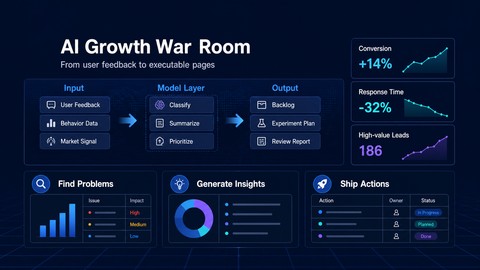
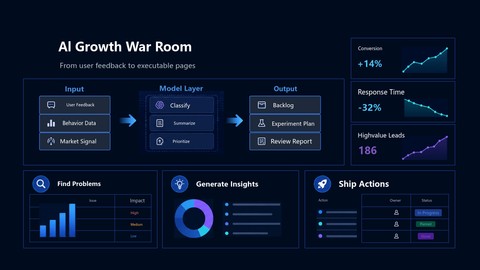
On the left, a generated slide image of the kind you would produce in a conversation. On the right, the same slide after conversion, opened in PowerPoint. The headline, the body text, the metric cards and the table cells are separate objects at that point, not regions of a picture.
Not connecting? Work through this order
Almost every "it won't install" ends up being one of the same few things. Do these six in order first, then read the specific symptoms below if it still fails.
First, know which route you are on. Local-callback authorization for ① Codex App and ③ CLI is not live yet, so on those two routes every "re-authorize / click Authenticate again / codex mcp login" suggestion in this section cannot work — use ② ChatGPT developer mode instead. Everything below applies normally to ②, and to ①/③ once the fix ships.
- Check the URL and the type. The URL must be
https://image2ppt.com/mcp (ending in /mcp, with no extra slash or path) and the type must be Streamable HTTP — not stdio, not SSE. Getting one of these two wrong is the most common cause by a wide margin.
- Save, then restart Codex. Without a restart the client can keep holding old state: the entry looks added in the UI but was never loaded.
- Click Authenticate. Entering the address is not the same as connecting — every tool needs authorization before it can run. "Not connected" before you authorize is the expected state, not a fault. (Local-callback authorization for the Codex App and CLI is not live yet, so this step cannot complete today — see the notice at the top of ① Codex App.)
- Check with
/mcp or codex mcp list. Trust what those report, not whether a row appeared on the settings screen.
- Still stuck: re-authorize, or remove and re-add. Click Authenticate again first (or run
codex mcp login image2ppt). If that does not do it, delete the server entry and add it again from step 1 so the client drops whatever it cached. (But if what you hit on ① Codex App or ③ CLI is invalid_redirect_uri, neither retrying nor re-adding can help — that is the server-side fix not being deployed. Skip to step 6, or use ② ChatGPT developer mode.)
- If it still fails, contact support. Write to support@image2ppt.com with: which client and version (Codex App or CLI), the URL and type you entered, which step it stops at, the complete error text shown on screen, and roughly when it happened. Do not send tokens, authorization codes, the full authorization URL, or any other secret — none of that helps the diagnosis and sending it creates risk.
Couldn't connect to image2ppt
The client cannot reach the address. Nine times out of ten the URL or the type is wrong: confirm https://image2ppt.com/mcp and that the type is Streamable HTTP. Also confirm this machine can reach image2ppt.com at all — a corporate proxy or firewall blocking it produces exactly this symptom. Save and restart after any change.
Not logged in / Authentication required
The address works; you simply have not authorized yet, or the authorization expired. Go back to MCP servers and click Authenticate (on the command line, codex mcp login image2ppt), then sign in and approve in the browser. Authorizations do expire, so being asked again after a long gap is normal rather than an error.
If you see this on ① Codex App or ③ CLI: local-callback authorization is not live yet, so clicking Authenticate again will not complete either — use ② ChatGPT developer mode.
The browser approval succeeded but Codex still shows it as not connected
First check the real state in Codex with /mcp (or codex mcp list) — sometimes the screen just has not refreshed. If it still says not connected, restart Codex and look again, then authorize once more (except on ① and ③: local-callback authorization is not live yet, so another attempt cannot complete).
Do not confuse this with a different problem: if the browser was signed in to another Image2PPT account of yours, the authorization succeeds and Codex shows as connected — it is simply spending that account's credits and showing its history. To tell them apart, ask Codex to call get_account and check the email it reports; if it is the wrong one, switch accounts in the browser and authorize again.
No Authenticate button appeared after saving
Usually the entry has not really been loaded, or the type is wrong — only a remote server type such as Streamable HTTP goes through OAuth, and only those get that button. Restart Codex first. If it is still missing, delete the entry and add it again from step 1, paying particular attention to the Type field.
Stale authorization or cached MCP metadata
Clients cache a server's tool list and authorization details. After we ship an update, your copy can still be the old one — which shows up as a wrong tool list, or a valid authorization being treated as invalid. The fix is to make it fetch again: restart Codex, and if that is not enough, remove the server, add it back, and authorize again (① and ③ cannot complete that last step today — see the notice at the top of this section).
The browser reports an invalid redirect_uri during authorization
If the error contains invalid_redirect_uri, or the sentence "Only OpenAI Codex/ChatGPT connector callbacks are supported", the server rejected the local callback address Codex uses to receive the result. This is not something you mistyped, and there is nothing to change on your side. Please contact support@image2ppt.com with the complete error text (again, not the authorization link itself — it carries a one-time code). In the meantime the ChatGPT developer mode route does not use a local callback, so you can use that one.
What the plugin can and cannot see
| Question | Answer |
|---|
| Does Image2PPT learn my OpenAI identity? |
No. Your OpenAI or ChatGPT account is never shared with us. We only know the Image2PPT account you signed in to yourself. |
| How does it know which account to charge? |
You approve the connection once, in a browser, while signed in to Image2PPT. The permission granted belongs to you and spends your credits. |
| What is the permission allowed to do? |
Convert slides and read the status and download links of those conversions. It cannot change your account or see anyone else's work. |
| Can I take it back? |
Yes, from your Image2PPT account at any time. Converted decks you already downloaded are unaffected. |
| Do the images stay on your servers? |
The PPTX is kept for 30 days so you can download it; after that inputs and output are deleted. Nothing trains a model. |
Plugin, website or API — which one
|
Codex plugin |
Website |
Developer API |
| Best when |
The slides are already in your conversation |
The files are on your disk |
Another program does the converting |
| Slides per job |
Up to 20 |
Up to 50 |
Up to 50 |
| Signing in |
Approve once in a browser |
Normal sign-in |
A key you copy into your code |
| Account and credits |
One account, one balance, shared across all three |
Pay-as-you-go in all three cases: one credit per slide, packs from $4.99 USD up to $22.99 USD, no subscription. See full pricing → · Developer API →
Frequently asked questions
How do I install Image2PPT in the Codex App?
Settings → MCP servers → Add server. Name image2ppt, Type Streamable HTTP, URL https://image2ppt.com/mcp, Save, restart the Codex App, then come back and click Authenticate to finish the browser sign-in. The full walkthrough is in the section above. Note: local-callback authorization is not deployed yet, so the Authenticate step cannot complete today — use ChatGPT developer mode until it ships.
Is the Codex App setup the same as ChatGPT developer mode?
No — two separate settings. Adding the server in the Codex App does not make it appear in ChatGPT on the web, and the other way round. Set it up once, wherever you actually work.
Do I have to use the command line?
No. The codex mcp add commands are an optional alternative to the same setup. If you installed it in the app, you never need to open a terminal.
Can I install it from the plugin directory?
Not yet. Image2PPT is not listed in the official Codex plugin directory and has not been submitted for review. Add the server URL by hand today through ChatGPT developer mode; the Codex App and CLI rely on a local callback that has not shipped, so they cannot complete authorization yet. We will say so in product updates when the listing is live.
Are my images uploaded to your servers?
Yes. This is not a local conversion tool: images are uploaded to Image2PPT's cloud service, and the conversion involves third-party cloud infrastructure and model services. Retention follows the privacy policy. For company confidential material, client data, personal information or regulated data, check your own organization's policy first.
Why can't Codex hand me an editable PowerPoint directly?
Because what it produced is a picture. An image model paints the words onto the canvas the same way it paints the background — once the file is written, a heading is not a heading any more, it is a patch of coloured pixels. There is nothing for PowerPoint to click into. Image2PPT reads that picture and rebuilds the text and structure as real objects where the result is clean enough to be worth keeping.
Do I have to download the image and upload it somewhere?
No — that round trip is the reason this plugin exists. The images go straight across, and the finished file comes back as a link in the same conversation.
Does Image2PPT get access to my OpenAI account?
No. We never receive your OpenAI or ChatGPT identity. You sign in to your own Image2PPT account in a browser and approve a permission limited to converting slides and reading those results. You can revoke it whenever you like.
What if I run out of credits halfway?
Your images are saved before that point and nothing is charged. Buy credits from the link, come back, say continue — the saved job starts without re-uploading anything, and the same deck is never billed twice.
How many slides can one conversion hold?
Up to 20 images in a single call, assembled into one deck in the order you gave them. One credit per slide. The website handles up to 50 per job if you need more.
Does it work on images I attached rather than generated?
Yes. Where the picture came from does not matter; how legible it is does. Sharp text and an uncluttered layout convert better than a blurry photo of a projector screen.
Is this the same account as the website?
Yes — one account, one credit balance. Credits bought on the website work here and the other way round, and every conversion shows up in the same history.
What happens to the slide images I send?
They are processed on Image2PPT's servers. Uploaded originals and finished files are both deleted automatically after the retention period, and nothing trains a model. The exact terms are in the privacy policy.
Is there a free trial?
Yes. A new account gets free credits on first sign-in, enough to convert a few slides and judge the result before paying. There is no subscription and credits do not expire monthly.
Will the fonts and colours survive?
Colours are reproduced from the image. Fonts are mapped to ones PowerPoint actually ships with, so the hierarchy holds even when the original typeface is not available — swapping in your brand font afterwards takes seconds.
Which languages does it handle?
English, Chinese, Japanese, Korean and the major European languages. The plugin also answers you in English or Chinese depending on which you are speaking, and the checkout page follows the same choice.
Last updated 2026-08-14. Image2PPT is actively maintained — format support, conversion quality and these answers are revised based on what users report.